


How To Forward An Email In Your Mail Provider
💡 Email forwarding is a term used for the process of re-sending an electronic message you received to another address not included in the original message. When you forward email, the new recipient can see the entire chain of messages, plus any included attachments.
How to forward an email in Gmail
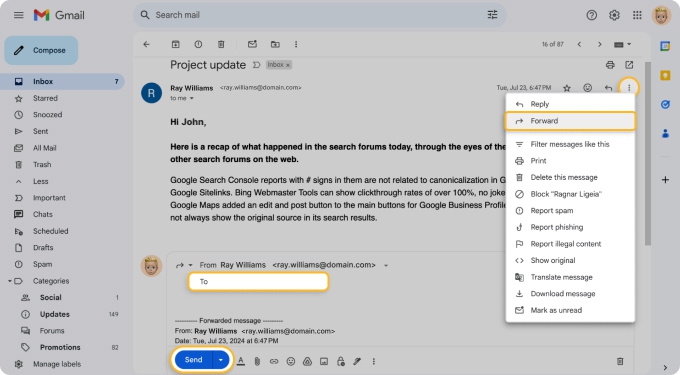
- Open the message you’d like to forward and do one of the following:
- Select the More button (three dots) on the top right and choose Forward.
- Click Forward at the very bottom of the email.
- Add your own text.
- Optionally edit the subject and body or remove any attachments.
- Enter the recipient in the To line.
- Click Send.
💡 Hint: Want to pass along more than one message? Learn how to forward multiple emails in Gmail.

How to forward Yahoo emails
- Pull up your Yahoo Mail inbox.
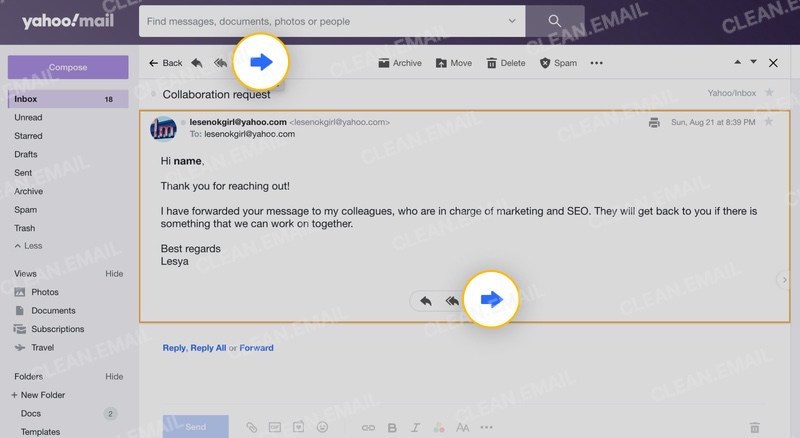
- Open the message you need to forward.
- Click on the Forward button in the upper left.
- Add the recipient’s address and anything else.
- Press Send.
For more information, read our post on Yahoo email forwarding. Need something more specific? We also have a guide on how to forward Yahoo Mail to Gmail.
How to forward emails from Outlook
- Go to your Outlook inbox.
- Open the message you plan to forward.
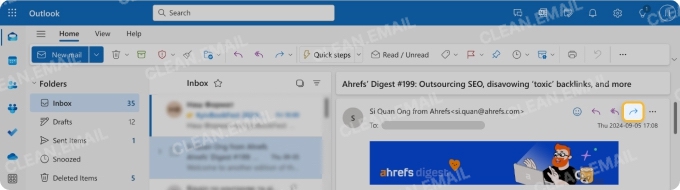
- Click the Forward button in the upper right corner.
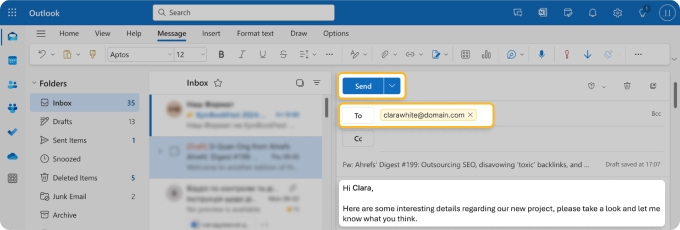
- Finish the message as usual.
- Press Send when you’re ready to forward the message.
💡 Hint: If you’re still having issues or need additional assistance, check out our posts on Outlook email forwarding.
How to forward an email in AOL
- Navigate to your AOL inbox.
- Open the message you’d like to forward.
- Click on the Forward button.
- Add the recipient’s address and anything else.
- Press Send.
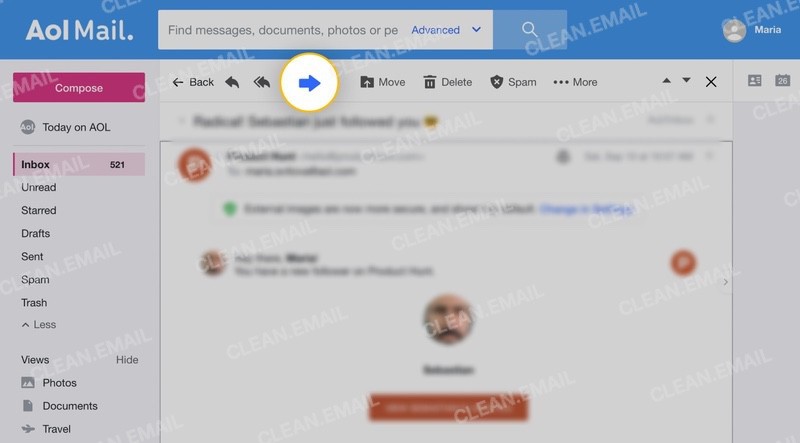
For more information, read our post on AOL email forwarding.
How to forward emails in Apple Mail
- Open the Mail app on your Mac.
- Select the message you wish to forward.
- In the Message Header section, press Forward.
- Add the recipients you want to forward the message to.
- Click Send when you’re ready.
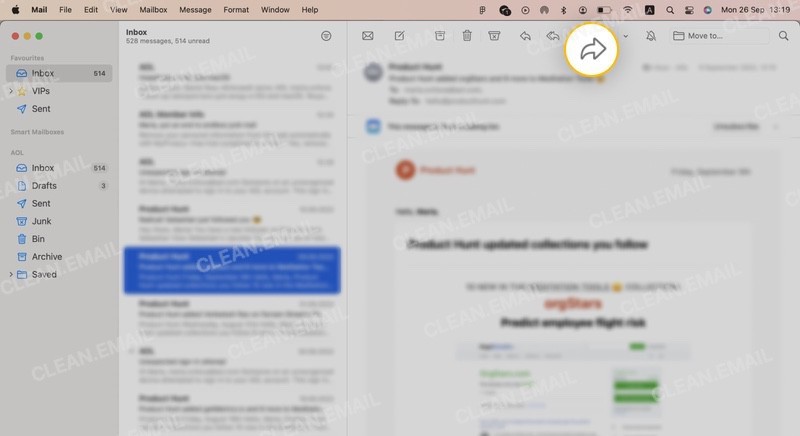
Using your mobile device instead? Check out our helpful post on how to forward email from iPhone.
💡 Tip: Want to forward everything from one mailbox to another you use more frequently? Read our full guide on how to set up automatic email forwarding.
Use Clean Email For Better Inbox Management
When you forward a lot of emails between accounts, your inbox can fill up fast with threads you no longer need. Clean Email is an inbox management app that helps you sort through the clutter — you can forward emails right from the app while also organizing what's left behind.
To forward a message in Clean Email:
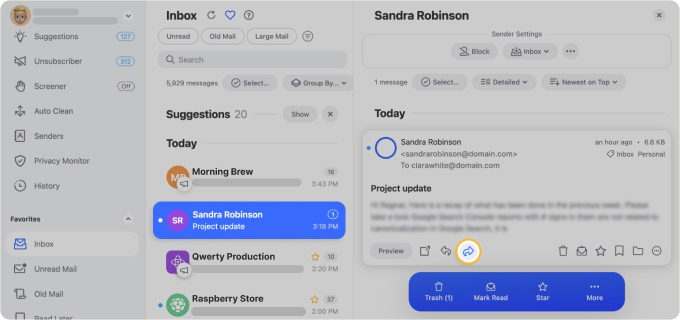
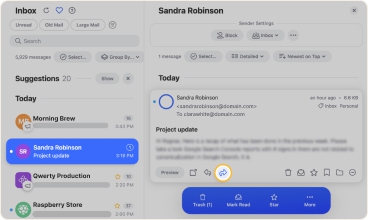
- Select the Forward button (right-pointing arrow) at the bottom of the email.
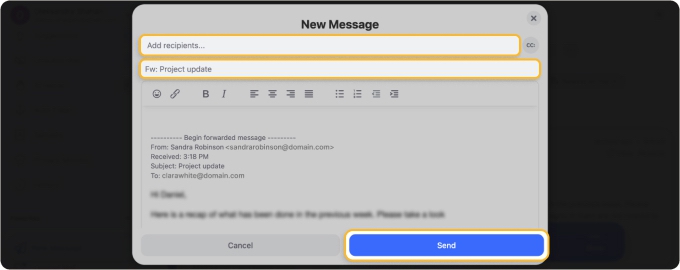
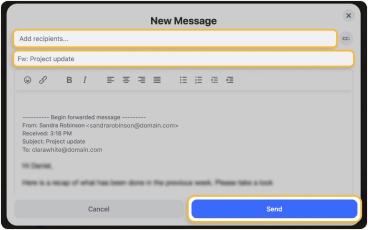
- Add your own text and optionally edit the subject and body.
- Enter the recipient in the Add recipients line.
- Click Send.
⚠️ At this time, Clean Email doesn't allow forwarding attachments. While inline images can be forwarded without issues, any attachments in the original message won't be included when the email is sent.
This means you don’t have to worry about inadvertently sharing tracked documents. For example, if the sender included a tracked PDF, it won’t be forwarded with the message, ensuring your privacy is maintained and that you’re not unintentionally sharing monitored content.
Then, to move forward with decluttering, Clean Email provides the Cleaning Suggestions feature that suggests emails that are safe to clean up based on what other users usually remove. The end effect is a lighter inbox with easier access to the important emails.
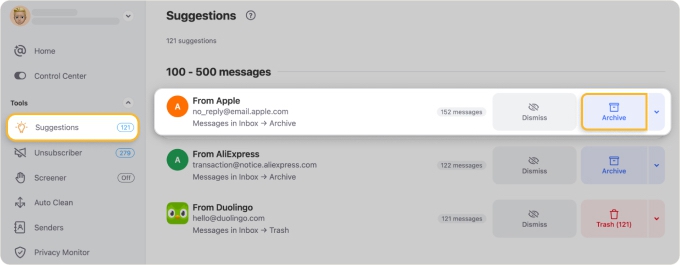
Beyond cleaning, it also offers tools for unsubscribing, automating inbox rules, and more that are worth exploring once you get started. You can try Clean Email as a web app, a Mac desktop app, and a mobile app.
Email Forwarding - FAQs
Can you forward an email to another email address?
Once you learn how to forward emails, you can easily send messages to another address, whether it’s another person or your own secondary account.
How can I forward my emails for free?
You can automatically forward emails for free by setting up automatic forwarding with your original inbox. Most major email providers (with the exception of Yahoo) offer this service for free.
What happens when you forward mail?
When you forward a message, it is re-sent to the new address you placed in the To line. The original message will still appear in your inbox.












